

Prerequisites
- Ensure that your system meets the system requirements.
- Ensure that you have already installed Git, Node.js, and npm.
- For most platforms, you will need to have root and/or administrator privileges.
Install the connector for Windows
Download and run the installer
Go to Auth0 Dashboard > Authentication > Enterprise > Active Directory/LDAP, and select the connection you want to configure. In the Setup tab, select the Install For Windows button to download the latest installer, which is an MSI file. Run the installer and follow the instructions to install the AD/LDAP Connector as a Windows Service.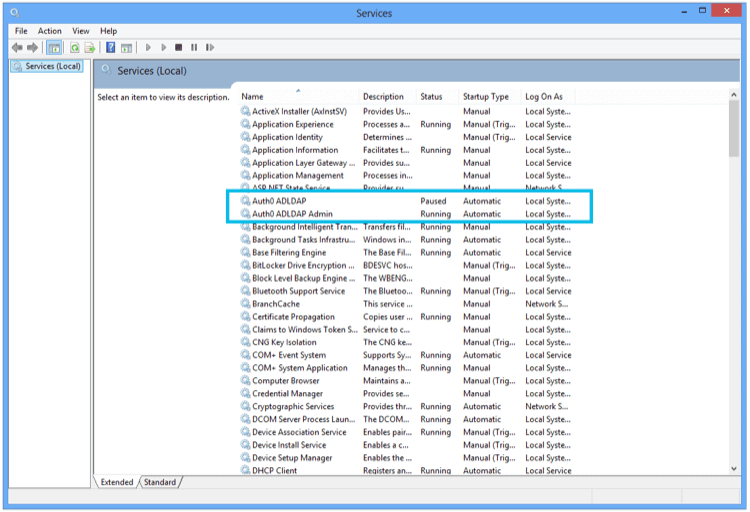
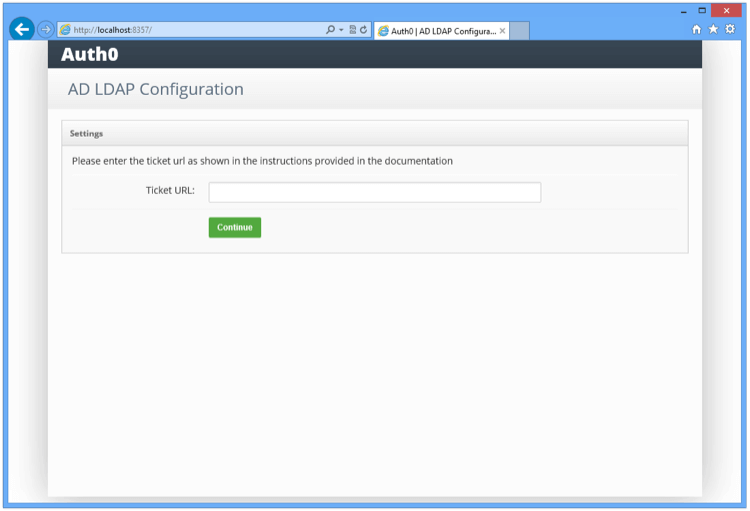
Link to LDAP
Enter the LDAP settings: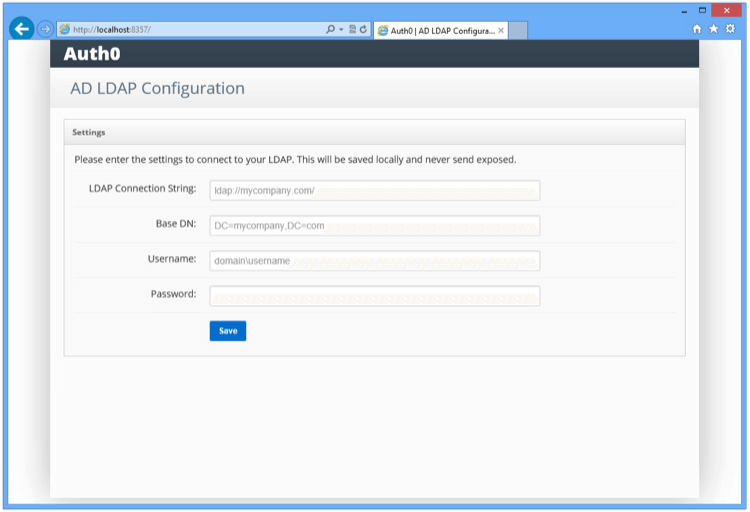
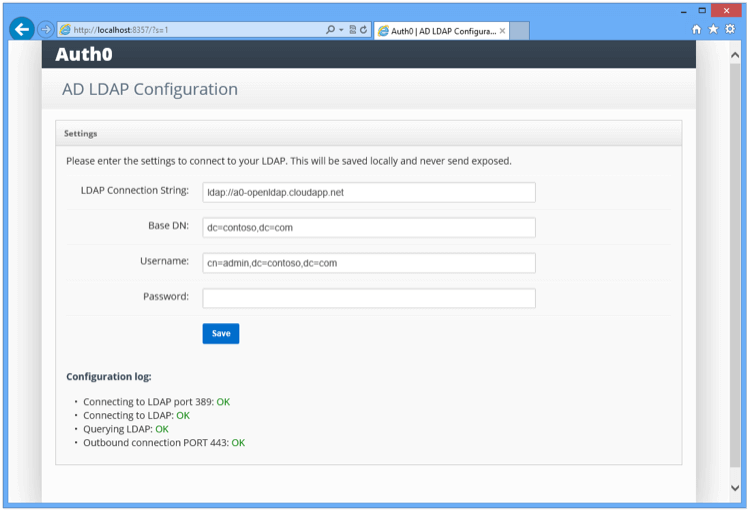
Once you submit the above information, the connector will perform a series of tests to validate the information you entered. The results are displayed under Configuration Log in the console screen.
Install the connector for other platforms
-
Download and install the latest version of the Auth0 Active Directory/LDAP Connector package to
/tmp. To learn more, review the AD/LDAP Connector repository. -
Start your server.
node server.jsWhen prompted for the ticket number, enter the full ticket URL from the Settings tab of the Setup AD/LDAP connector screen in the Auth0 Management Dashboard. -
You will be prompted to edit the
config.jsonconfiguration file with your LDAP connection and authentication details: -
Run
node server.jsonce more to start the Connector. Note that theLDAP_BIND_PASSWORDline inconfig.jsonchanges toLDAP_BIND_CREDENTIALSat this point. -
Once the Connector is running, you will need to daemonize the Connector (if you don’t already have a tool selected, you can consider systemd). For example, for using systemd with Ubuntu Xenial, the file
/lib/systemd/system/auth0-adldap.servicecould contain the following: -
Run
node admin/server.jsto access the admin UI. The admin UI will be running and available onhttp://localhost:8357.
Invalid Ticket message when configuring the Connector for the first time, the most likely cause is a network issue (for example, you have the Connector running behind a proxy).