

Auth0 Dashboard Navigation is is available as an Early Access feature on all Auth0 plans.Feedback is collected throughout the Early Access period.
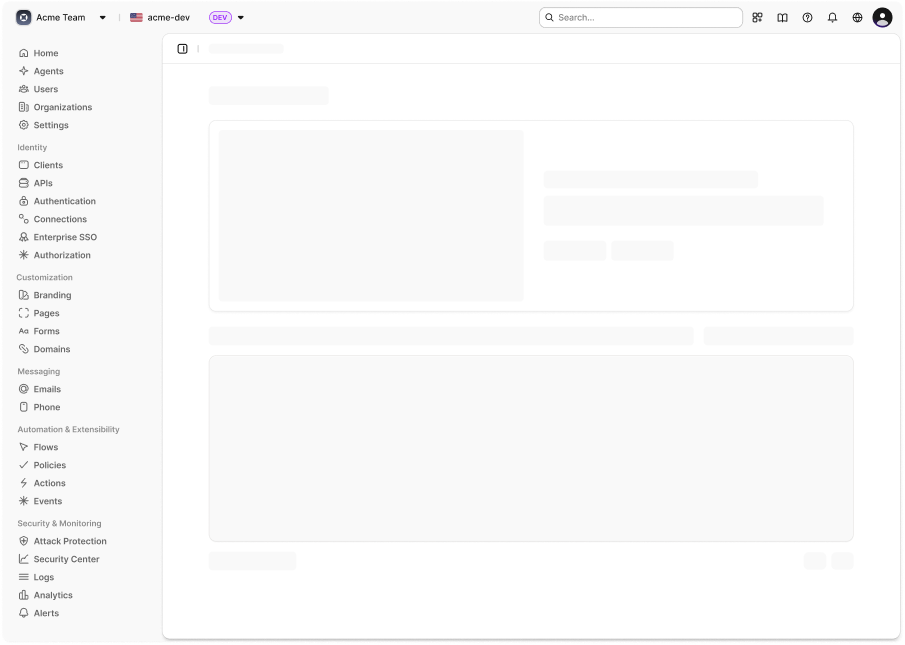
Dashboard navigation UI
Enable Auth0 Dashboard navigation
When the navigation feature is available for your tenant, an opt-in popup displays the first time you log in:- Select Try now to enable the new navigation immediately, or Maybe later to dismiss the popup.
- If you choose Maybe later, the popup will reappear in 14 days.
- After opting in, you can disable the navigation feature from your user profile menu:
- Choose your profile icon in the top-right corner of the Dashboard.
- Click the new navigation toggle to switch back to the old navigation UI.
How it works
The navigation in Auth0 Dashboard groups related items into logical sections with clear, workflow-focused naming for easier navigation. A sticky page action bar appears at the top of each page with breadcrumbs, tabs, actions, and the sidebar toggle button to keep important controls visible as you scroll. Breadcrumb trails now appear in the action bar instead of scattered across page headers for consistent context navigation. The new navigation also includes a refreshed, modern layout and structure for improved usability. The navigation features a redesigned left sidebar as you navigate between sections in Auth0 Dashboard. The sidebar is organized into the following sections:Browser support
The new navigation requires modern browsers withlocalStorage support for sidebar state persistence. If you encounter any issues, you can always switch back to the classic navigation using the profile menu toggle.