

Benefits
Why use B2B Connect - Enterprise? Whenever you set out to build products for B2B customers, you could build complex B2B identity tooling just to handle the foundational elements of onboarding and customer management. This work typically falls to a platform identity team that balances competing priorities. The result is constant pressure to make trade-offs across three structurally critical pillars:- Maintain rigorous security and interoperability.
- Deliver a flawless customer onboarding and lifecycle experience.
- Unlock and enable innovation for your core product.
Use cases
B2B Connect - Enterprise supports advanced B2B identity scenarios without the need for re-platforming, including the following use cases to:- Add enterprise SSO to an existing authorization server
- Use self-service onboarding for your enterprise customers
- Preserve your existing login experience and token issuance
- Enrich application identity tokens with enterprise claims
- Route users to enterprise IdPs based on verified email domain
- Delegate identity administration to your B2B customers
- Support IPSIE-aligned session management and Universal Logout
How it works
Auth0 B2B Connect - Enterprise sits between your application’s authorization server and your customers’ enterprise identity providers:- The user initiates login in your application.
- Your application sends an authentication request to your authorization server using its existing flow.
- Your authorization server identifies the user as a B2B Connect - Enterprise user and routes the request to Auth0.
- Auth0 B2B Connect - Enterprise sends an authentication request to the user’s enterprise IdP (such as Okta, Microsoft Entra ID, Google Workspace, or PingFederate) using SAML or OpenID Connect (OIDC).
- The user authenticates with their corporate credentials at the enterprise IdP.
- The enterprise IdP returns a SAML assertion or OIDC token to Auth0 B2B Connect - Enterprise.
- Your authorization server returns its own token to your application.
- Your application validates the token and bootstraps its own session.
- The user is granted access to your application.
Supported enterprise connections
B2B Connect - Enterprise supports the following enterprise connections:- SAML
- OIDC
- Okta Workforce
- Microsoft Entra ID (Azure AD)
- Google Workspace
- Active Directory / LDAP
- ADFS
- PingFederate
Integrate B2B Connect - Enterprise
You can integrate B2B Connect - Enterprise with the Create B2B Connect Integration wizard in Auth0 Dashboard, which establishes the topology. Your choice at Step 1 (Name and Type) in the wizard determines your entire integration path.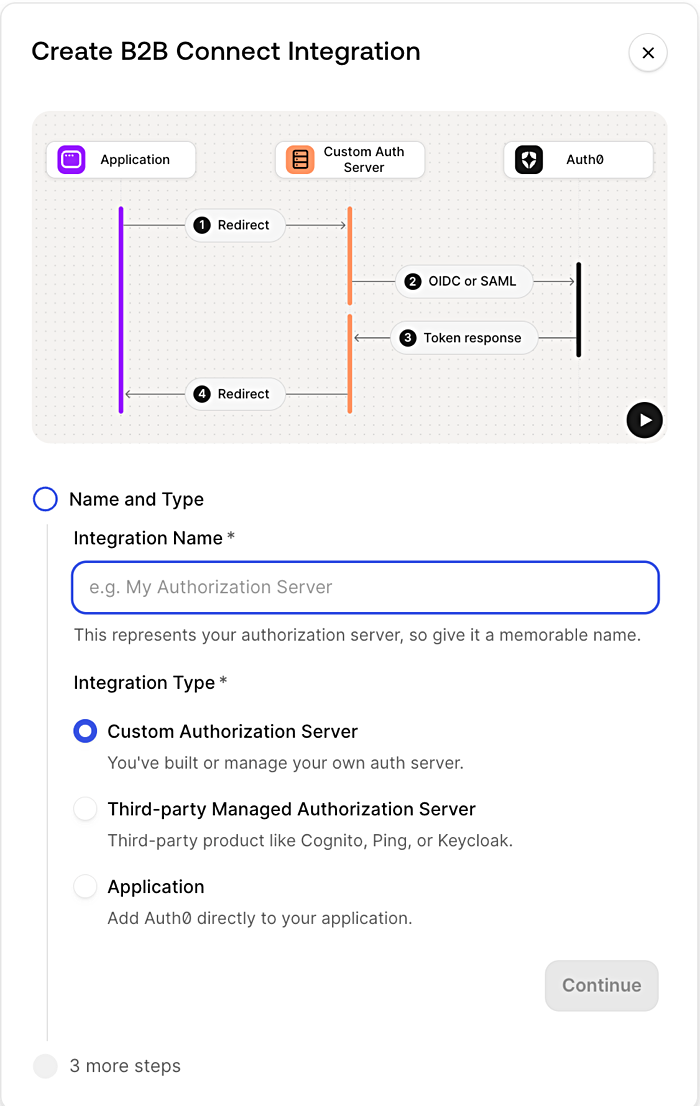
Custom authorization server
Use this type when you have built your own authorization server and it can act as a relying party to Auth0 over OIDC or SAML. Enterprise users are redirected from your auth server to Auth0; non-enterprise users remain entirely on your auth server.- Name and Type: Name the integration, select Custom Authorization Server.
- Authentication: Select OIDC (recommended) or SAML.
- Configure Auth0 as IdP: Provide values from your auth server so Auth0 can act as its identity provider:
- OIDC: Issuer URL and your Application Callback URL.
Expand Show individual endpoints if your auth server does not support issuer discovery to get the Authorization URL, Token URL, Client ID, and Client Secret.- SAML: Issuer, Identity Provider SHA1 Fingerprint, Identity Provider Login URL, Auth0 Certificate or IdP Metadata, and your Application Callback URL.
- Integration created: Proceed to set up Organizations and Self-Service Enterprise Configuration (SSEC) to onboard your first B2B customer.
Third-party managed authorization server
Use this type when you are using a purchased or managed authorization server. The topology and wizard flow are identical to Type 1. Refer to your auth server provider’s documentation for configuring Auth0 as an identity provider.- Amazon Cognito
- PingIdentity PingOne
- Ory
- Keycloak
- Transmit Security
- Name and Type: Name the integration, select Third-party Managed Authorization Server.
- Authentication Protocol: Select OIDC (recommended) or SAML.
- Configure Auth0 as IdP: Same OIDC or SAML field set as Type 1. Register Auth0 as the upstream identity provider in your managed auth server.
- Integration created: Proceed to set up Organizations and SSEC.
Application
Use this type when your application integrates with Auth0 directly, without a separate authorization server. The application embeds the Auth0 SDK and owns the session outright. This type is OIDC only and does not include a protocol selection step.- Name and Type: Name the integration, select Application.
- Configure Integration: Enter your Allowed Callback URLs. Auth0 redirects users to these URLs after authentication. At least one URL is required.
- Continue Setup: Integration created. Follow the Quickstart to add a Login with SSO button to your application and configure Organizations and SSEC.
Configure customer onboarding
Self-Service Enterprise Configuration (SSEC) gives your B2B customers a guided flow to configure their enterprise IdP and claims mappings without requiring direct support from your team. To configure customer onboarding:- In Auth0 Dashboard, navigate to B2B Connect. Under the Organizations tab, select Set up.
- Enter a name for your Self-Service Enterprise Configuration Profile.
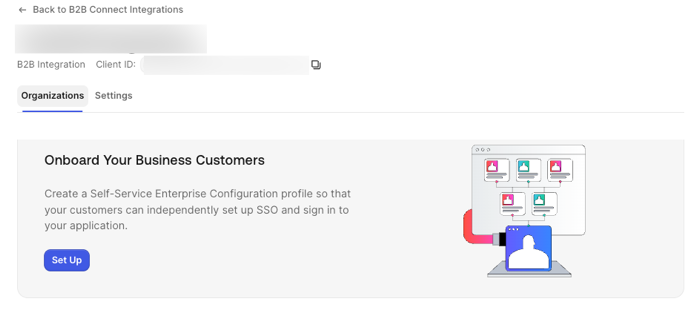
- Optional. Add a description.
- Auth0 creates a User Attribute Profile (UAP) named after your SSEC Profile. Select Continue.
- Choose how you want to generate SSEC tickets:
- API Integration
- Auth0 Dashboard
- Select Done.
For information on the maximum number of SSEC profiles you can create per tenant, read Self-Service Enterprise Configuration.
Create or configure an Auth0 Organization
Once you finish the customer onboarding setup, associate an Auth0 Organization with each self-service ticket request. To ensure your B2B customers can authenticate, grant each Organization access to the B2B integration application in addition to enabling its enterprise connection.Create a new Auth0 Organization
- Select +Create Organization or select the <> symbol for API integration instructions.
- Provide a Name for end users.
- Optional. Provide a Display Name. If omitted, the Display Name defaults to the Organization name.
- To skip onboarding ticket creation, select Create.
- To create an onboarding ticket for this Organization:
- Select the checkbox, then select Create and Continue.
- Add a Connection Name and Display Name.
- Select Create and Continue.
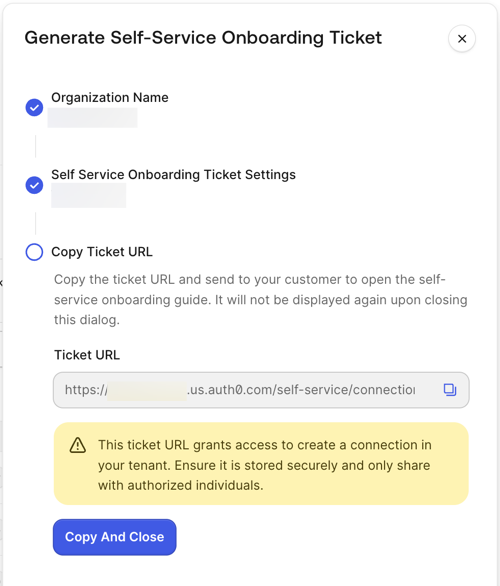
- Copy the ticket URL and share it with your B2B customer. Select Copy and Close.
- Your customer administrator launches the self-service assistant via the ticket URL and follows the steps to configure their connection and complete domain verification.
Configure an existing Auth0 Organization
- In B2B Connect - Enterprise, select the icon of the Organization you want to configure from the list.
- Add a Connection Name and a Display Name.
- Select Create and Continue.
- Copy the ticket URL and share it with your B2B customer. Select Copy and Close.
- Your customer admin launches the self-service assistant via the ticket URL and follows the steps provided to configure their connection and complete domain verification.
Auth0 Events
Use Auth0 Event to configure real-time notifications for lifecycle events, so you can keep your downstream identity store in sync with changes in Auth0. You can subscribe to events for users, Organizations, and enterprise connections.Configure lifecycle events
To configure lifecycle events:- In Auth0 Dashboard, navigate to Event Streams.
- Select + Create Event Stream.
- Choose your destination: Webhooks, AWS EventBridge, or Auth0 Actions.
- Enter your configuration and choose the event categories you want to receive:
- User events:
user.created,user.deleted,user.updated - Organization events:
organization.created,organization.deleted,organization.member.*,organization.updated - Connection events:
connection.created,connection.deleted,connection.updated
- User events:
- Select Save.
If you configure a supported connection, you receive
connection.created, connection.updated, and connection.deleted lifecycle events for all supported connection types. Use these events to keep your local domain map up to date as your B2B customers configure and modify their enterprise connections.Integrate Auth0 SDKs
Auth0 provides SDKs for integrating B2B Connect - Enterprise into your application or authorization server.Supported SDKs
Quickstarts for each SDK are available in the Quickstart tab of your B2B Integration.
Integration pattern
B2B Connect - Enterprise uses a stateless passthrough model. Auth0 handles the SSO round trip to the enterprise IdP and returns an enriched ID Token; your existing authorization server or application remains the session authority. This differs from a standard Auth0 integration in several ways:- Stateless mode: Server SDKs omit the session store (
stateStore/state_store). The callback method (completeInteractiveLogin/complete_interactive_login) returns user claims and the ID token directly. Read identity from the return value rather than getSession(). - No refresh token: B2B Connect - Enterprise does not issue refresh tokens. Set
scopetoopenid profile emailand omitoffline_access. - Organization required: Pass
organizationto/authorizeto bind the login to the correct Auth0 Organization and enable silent passthrough to the enterprise IdP. Validate the org_id claim in the returned token before trusting the login. - Federated logout: When logging out, redirect to Auth0’s
/v2/logoutwithfederated: trueto terminate the enterprise IdP session. Without this, the IdP session stays active.
Login with SSO
UseloginWithRedirect (SPA SDKs) or startInteractiveLogin (server SDKs) to initiate the authentication flow. Pass login_hint (the user’s email), connection, and organization in authorizationParams. Quickstarts in the Quickstart tab provide complete integration instructions for each SDK.
Domain-based user routing (Webfinger)
B2B Connect - Enterprise exposes a standard Webfinger endpoint you can use to detect whether a user’s email domain is managed by Auth0. Before using the Webfinger endpoint, the tenant admin must enable the Local Resource Discovery flag. Navigate to Tenant Settings > Advanced and enable Local Resource Discovery.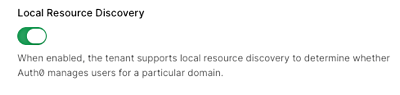
Recommended routing approach
Once Webfinger confirms the user is Auth0-managed, pass only the user’s email aslogin_hint to Auth0. You do not need to maintain your own domain-to-organization or domain-to-connection mapping — Auth0 handles Home Realm Discovery from the login_hint using the Organization and domain configuration set up during onboarding.
Auth0 then routes the user silently to their enterprise IdP. There are two scenarios depending on how many connections are enabled for the Organization:
- One connection enabled: Auth0 performs org-level HRD using the email domain and routes the user directly to the enterprise IdP. No additional configuration is required.
- Multiple connections enabled: Auth0 performs org-level HRD followed by connection-level HRD. This requires Identifier First to be enabled on your tenant so Auth0 can determine the correct connection without prompting the user.
Session management
IPSIE session expiry (OIDC)
Auth0 B2B Connect - Enterprise supports the IPSIEsession_expiry claim for enterprise OIDC identity providers. When Auth0 receives a session expiry signal from an enterprise OIDC IdP, it includes the session_expiry claim in the token that returns to your authorization server. Use this claim to terminate downstream sessions in alignment with the enterprise IdP’s session policy.
DPoP
B2B Connect - Enterprise supports Demonstrating Proof-of-Possession (DPoP) for enterprise connections. DPoP binds tokens to the client that requested them, protecting against token theft and replay attacks. If your existing authorization server also supports DPoP, it can be used with the B2B Connect client when Auth0 is acting as the identity provider.Universal Logout
B2B Connect - Enterprise supports Universal Logout with Okta Workforce Identity, OIDC, and SAML connections you can enable in Auth0 Dashboard. Universal Logout cannot be configured by your B2B customers, but it must be enabled for them.Delegated administration
B2B Connect - Enterprise also supports delegated administration through the My Organization API and UI components. With My Organization, you can build a self-service administration experience that lets your B2B customers manage their own Organization settings without contacting your team. B2B customers using the My Organization interface can:- Manage their organization’s enterprise IdP configuration
- Manage domain verification
- Invite and manage organization members
- Assign and remove member roles
- Update organization details and branding
Troubleshoot
Connection list is empty
If an Organization has enterprise connections enabled but has not been granted access to your B2B integration application, then your tenant administrators see no connections when viewing the Enterprise Connections tab in the Auth0 Dashboard. To resolve this issue: navigate to Auth0 Dashboard > Organizations and select your application and navigate to the Applications tab. Verify the relevant B2B Integration is listed. If it is missing, you may need to + Add Application. To use Local Resource Discovery via Webfinger, Per-Application Access must currently be disabled for the Organization.B2B customer did not receive self-service ticket
If a B2B customer does not receive their onboarding ticket, create a new ticket. In B2B Connect - Enterprise, navigate to the Organizations tab, select the relevant Organization, and generate a new onboarding ticket.Enterprise connection does not surface in the login flow
Review the following conditions:- Verify the enterprise connection is enabled on the correct Organization.
- Confirm the Organization has been granted access to the B2B integration application (per-application access).
- Check the user’s email domain matches the verified domain associated with the Organization.