

Authorize M2M access
To authorize machine-to-machine access for an application, you must enable it to use an Organization for a specific API. To do so, you must associate the application’s client grant to the corresponding API with the Organization. Once associated, the application can use the Organization when requesting tokens for the API and scopes defined in the client grant. Define this association for each API your application needs to access for the Organization.This flow is supported for third-party applications. Third-party applications cannot use
allow_any_organization, so each Organization must be explicitly authorized using the following steps.- Auth0 Dashboard
- Management API
To associate an application’s client grant to an Organization via the Auth0 Dashboard: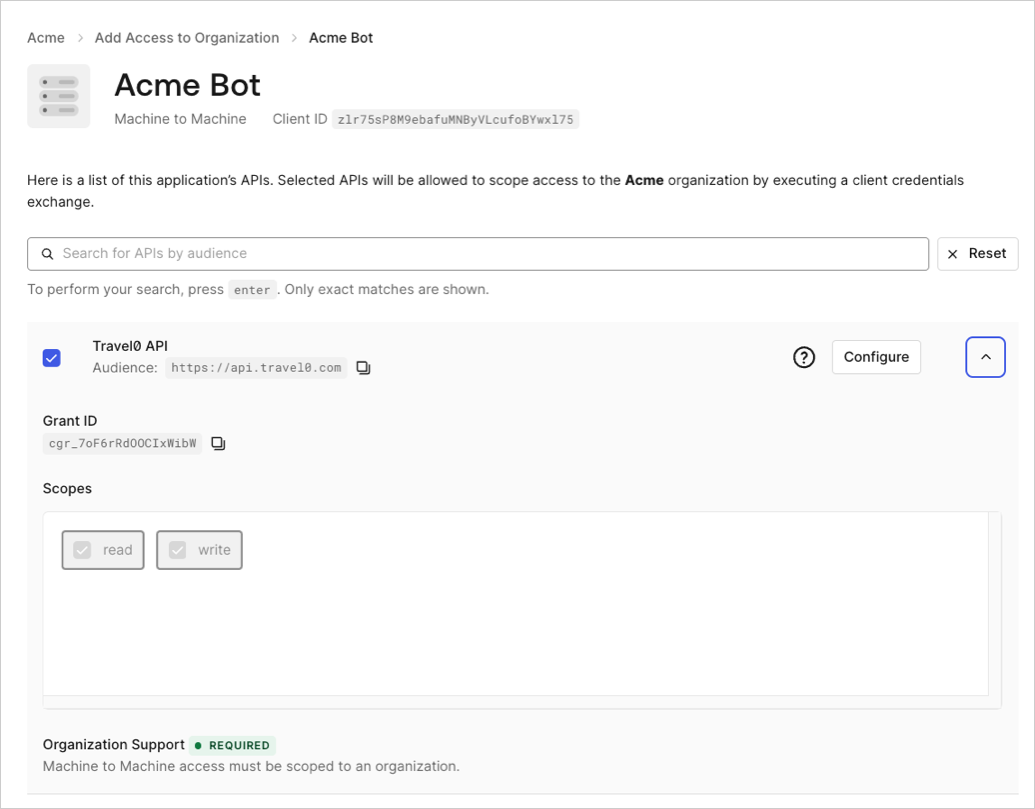
- Navigate to Organizations and choose the Organization you want to associate with.
- Select the Machine-to-Machine Access tab.
- Select Add Access.
- Select the application you want to associate with the Organization.
- Select an API.
- Select Save.
Revoke M2M access
To revoke M2M access, or remove access to an Organization for your application, you must delete the association between its client grant(s) and the Organization. Once this association is deleted, the application is no longer permitted to use the Organization when requesting new tokens for the API defined in the grant. Revoking M2M access works the same way for third-party applications.Revoking M2M access does not impact applications that have been granted access to any Organization. To learn more, read Define Organization Behavior.
- Auth0 Dashboard
- Management API
To remove the association between an application’s client grant and an Organization via the Auth0 Dashboard: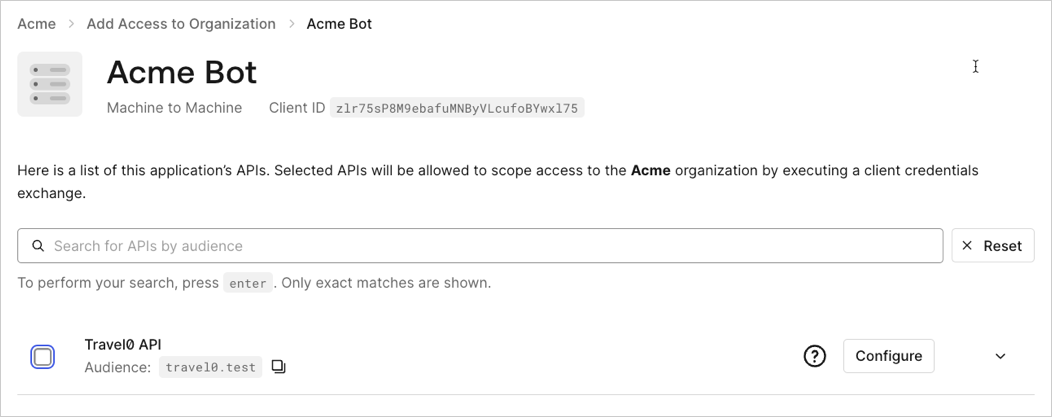
- Navigate to Organizations and choose the Organization you wish to remove the association from.
- Select the Machine-to-Machine Access tab.
- Choose an application.
- Uncheck the box next to the APIs you wish to disassociate with the Organization.
- Select Save.
Audit M2M access
Machine-to-Machine Access to Organizations can be granted by directly associating a client grant to an Organization or allowing access to any Organization in the client grant settings. Both scenarios can be audited via the or the , where you can view or retrieve a list of client grants associated with an Organization for an application. To learn more about how M2M access to Organizations permissions work, read Configure Your Application for M2M Access and Authorize M2M Access. Auditing works the same way for third-party applications.Access granted via direct association
Use the Auth0 Dashboard and Management API to audit M2M access for client grants that are directly associated with an Organization.- Auth0 Dashboard
- Management API
To view the application client grants that have been authorized for a specific Organization on the Auth0 Dashboard: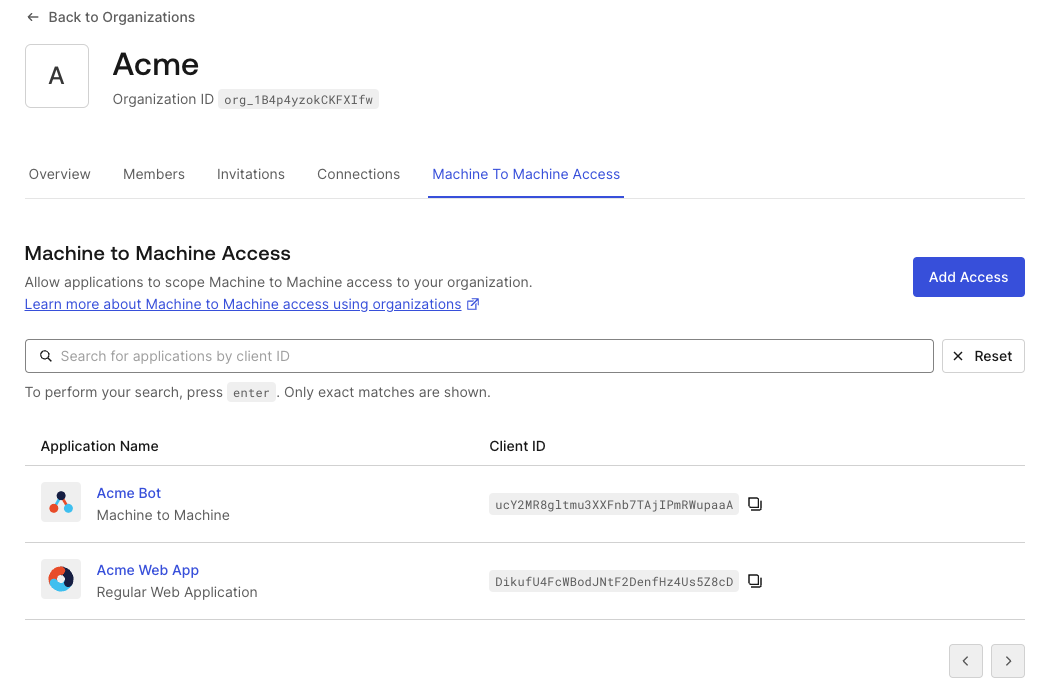
- Navigate to Organizations and choose the Organization you wish to inspect.
- Select the Machine-to-Machine Access tab. You get a paginated list of all the applications that can access an API for this Organization via direct association.
- Choose an application to review the authorized APIs listed for that application.
Access granted to any organization
Use the Auth0 Dashboard and Management API to audit M2M access for applications that have access granted to any Organization.This section does not apply to third-party applications. Third-party applications cannot use
allow_any_organization and will not appear in this audit query. Use the direct association queries above instead.- Auth0 Dashboard
- Management API
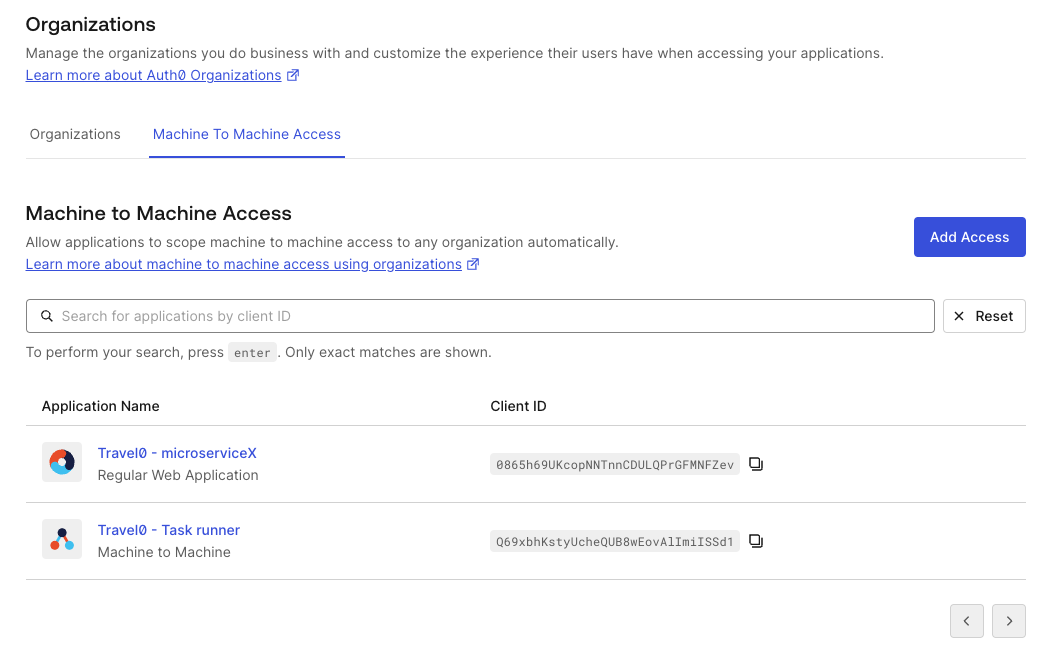
- Navigate to Organizations.
- Select the Machine-to-Machine Access tab. You get a paginated list of all the applications that can access at least one of the APIs for an Organization.
- Choose an application to review the authorized APIs listed for that application.
Search applications based on organization access
Search results are eventually consistent.
q parameter on the /clients endpoint:
Tenant logs
Machine-to-Machine Access for Organizations is also reflected in tenant logs. You can check theorganization associated to the request in the corresponding seccft tenant log.
The following code sample is an example seccft tenant log with organization information: